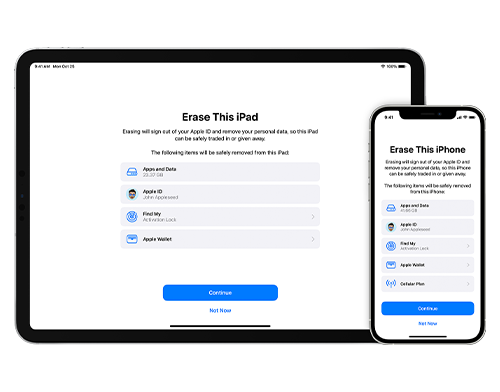
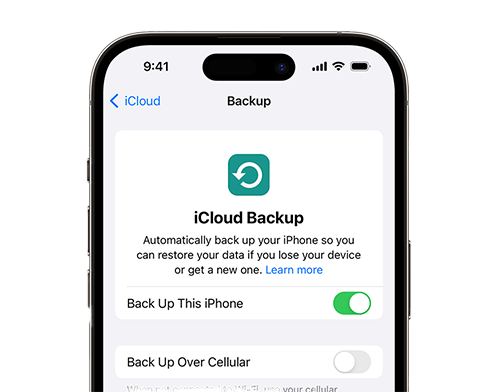
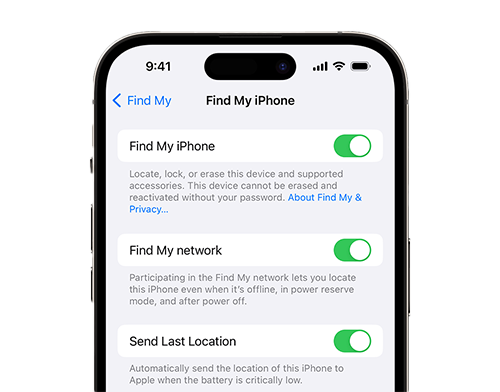
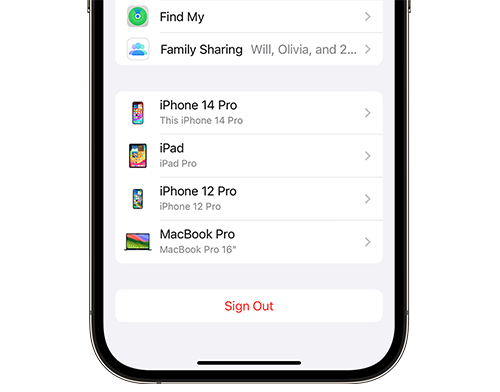
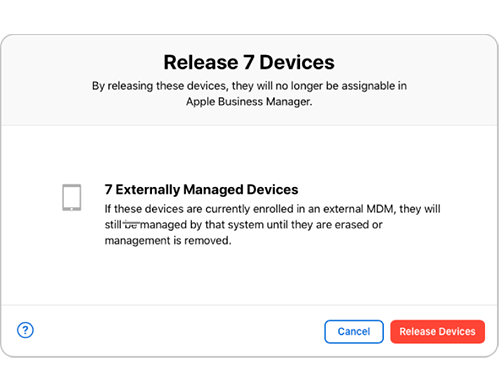
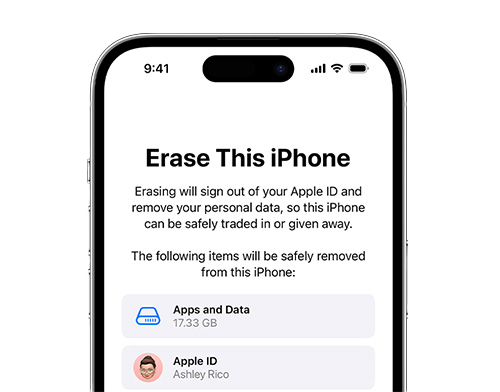
Prepare your devices for return in five simple steps.
Whether you’re trading up for a new device, or returning your old kit, follow this guide to ensure your iPhone or iPad is wiped and ready for collection.
This warranty is inclusive of all parts and labour. If your machine is faulty, we offer, at no cost, a ‘Collect and Return’ service; whereby our courier will be sent in the next day after a fault has been reported and will return the equipment to us for repair. *For devices not supplied by HardSoft or devices over 4 years, Hardware cover is not included.
Loan device
While your device is being repaired.
Ticket-based helpdesk
Technical support by emailing [email protected] Monday – Friday 9:00am – 5:30pm.
Access to online support portal
24-hour access to our online knowledge base with support portal.
Support incident response SLA
Technical Support Response time for incidents via our ticket system.
1-hour
1-hour
30-min
Apple Business Manager enrolment
Manage your organisation’s devices, apps, and accounts.
Windows Autopilot enrolment
Manage your organisation’s devices, apps, and accounts.
Pre-configured devices
Before we ship your new devices, we can pre-configure any software or enrol into your MDM solution before the users receives their new device.
MDM device management setup
Help from our Solutions Team to setup your Mobile Device Management solution to automate one touch deployment.
Access to solutions mentors
Our Solutions engineers can help answer your burning strategic or IT project questions.
Annual onsite visit
Book a HardSoft engineer to attend 1 day onsite per year at your office.
Ongoing MDM support
Ongoing support from our Solutions Team to setup and manage your Mobile Device Management solution – Shepherd or Intune. Included with MDM licenses.
Boomerang (repurpose unused devices)
Repurpose your existing devices for new starters, we can collect wipe and prevision the device before shipping to the new user directly.
Flying Squirrel Backup Solutions
Backup solution for Microsoft 365 and Google Workspace.
Quarterly strategic security review
One of our strategists will review your device security and provide advice.
Quarterly activity reporting
One of our strategists will analyse your ticket history and advise.
Included for free with
FLEXI PURE
devices for teams
Optional Upgrade
Price for non-HardSoft devices
(Per month per device ex VAT)
£10
£20
From
£30
From
£35
We use cookies to ensure that we give you the best experience on our website. If you continue to use this site we will assume that you are happy with it.